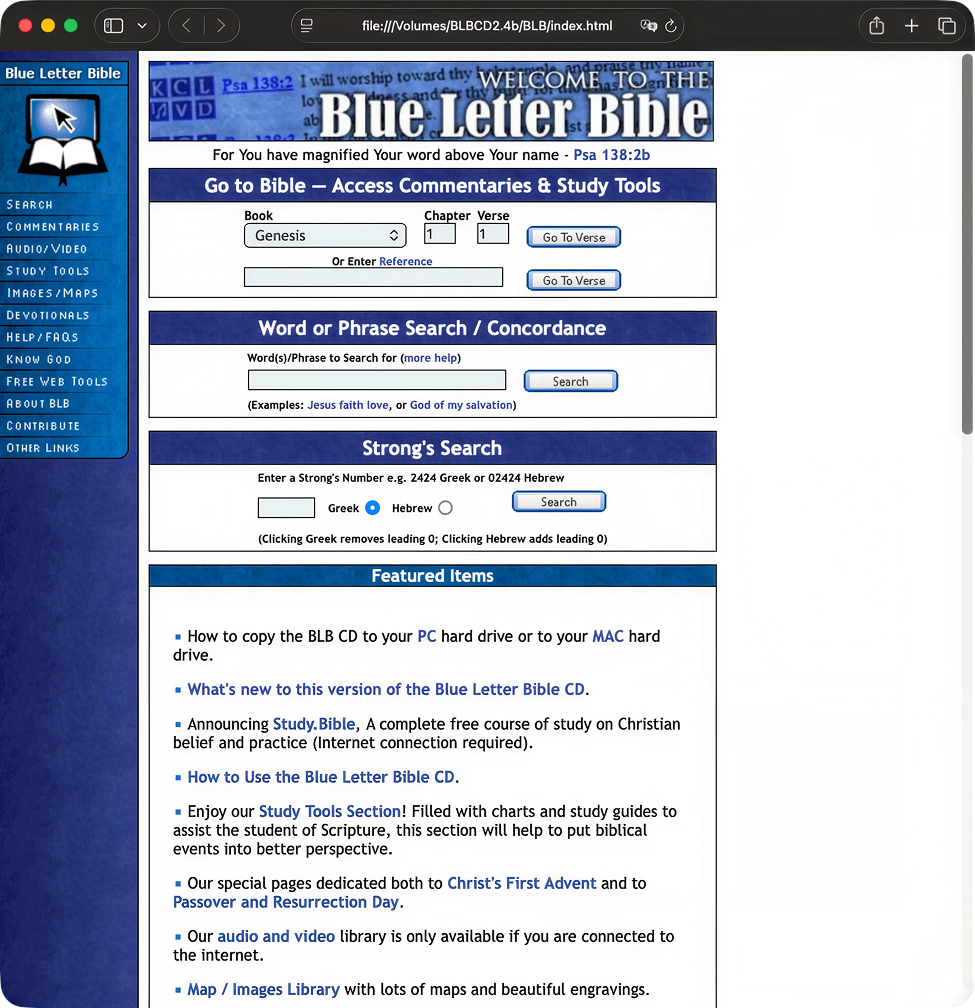
BLB on CD
Take your Bible study library anywhere, no internet required. Request the BLB study CD today to access trusted reference tools, dictionaries, and commentaries wherever your ministry takes you.
How to Copy the BLB CD to Your Hard Drive - Windows
This tutorial will guide you step-by-step in the process of how to copy the Blue Letter Bible CD (BLB CD) to your hard drive. There are two main advantages for having the Blue Letter Bible run from your hard drive: (1) It will keep your CD-ROM drive available for other software CD-ROMs or music, (2) the Blue Letter Bible will run quicker from your hard drive than from a CD-ROM drive. The following instructions apply to computers running the Microsoft Windows operating system.
-
Before copying the BLB CD onto your hard drive, it is necessary that you have enough space on your hard drive. You need to have about 800 MB of available hard disk space. To determine how much available space you have available on your hard drive follow these steps:
- Open File Explorer.
Method 1. Click on the the Start Menu, and select File Explorer.
Method 2. Click on the manilla folder icon at the bottom of your screen.
- On the left, you will see a list of locations such as Home, Gallery, Desktop, etc.,
- Seclect Local Disk (C:)
- Right Click on Local Disk (C:)
- At the bottom of the drop down is listed Properties
- Select Properties and right click.
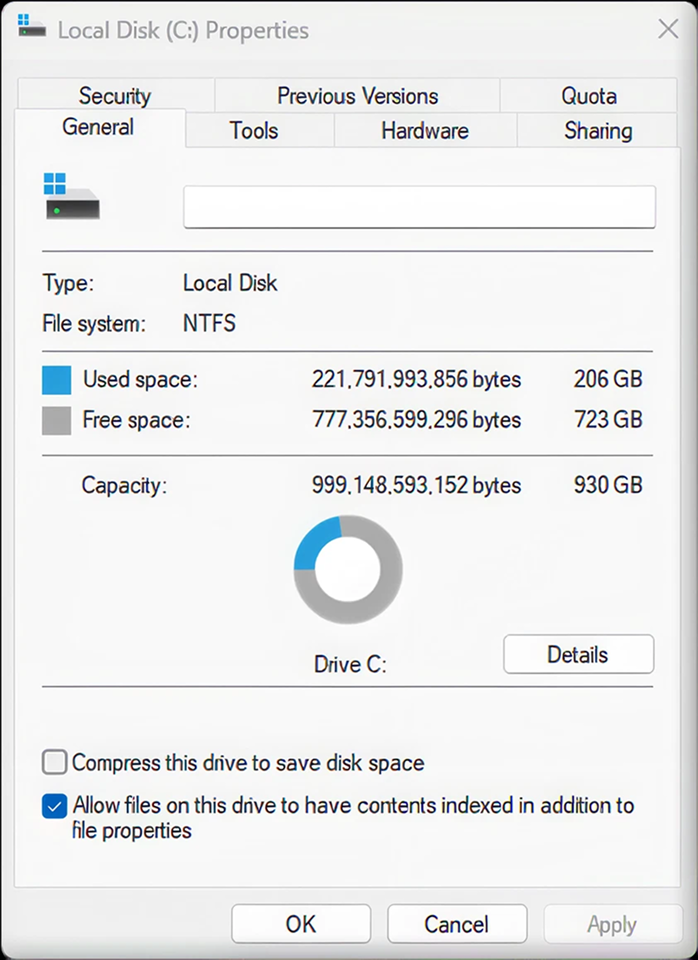
In the image above we see that we have 723GB of space available on the hard drive.
-
When the hard drive "Properties" window appears, you will notice that it shows the hard drive's capacity (including used and available space) in the form of text and in the form of a ring chart. Find the "Free space" section and determine whether there is AT LEAST 800MB available (1GB = 1024MB; 1MB = 1024KB; 1KB = 1024 bytes). If you have the available space, then advance to the next step.
If you do not have the available space then do not proceed with this tutorial, but continue to run the BLB CD directly from the CD-ROM drive.
-
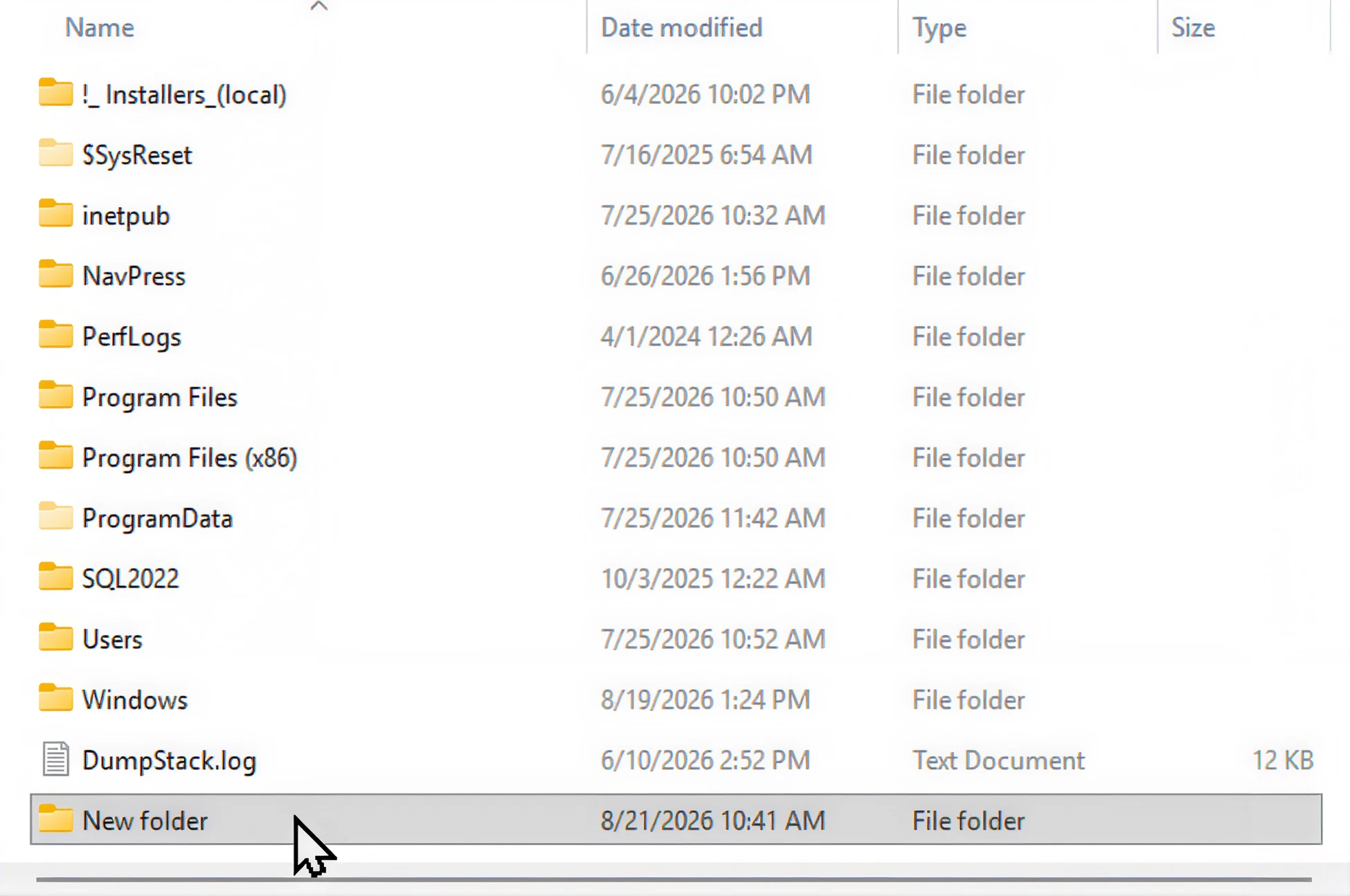
In Windows Explorer go to the hard drive to which you want to copy the BLB CD and right click within some white space in that directory. Within the drop-down menu click on "New" and then on "Folder."
-
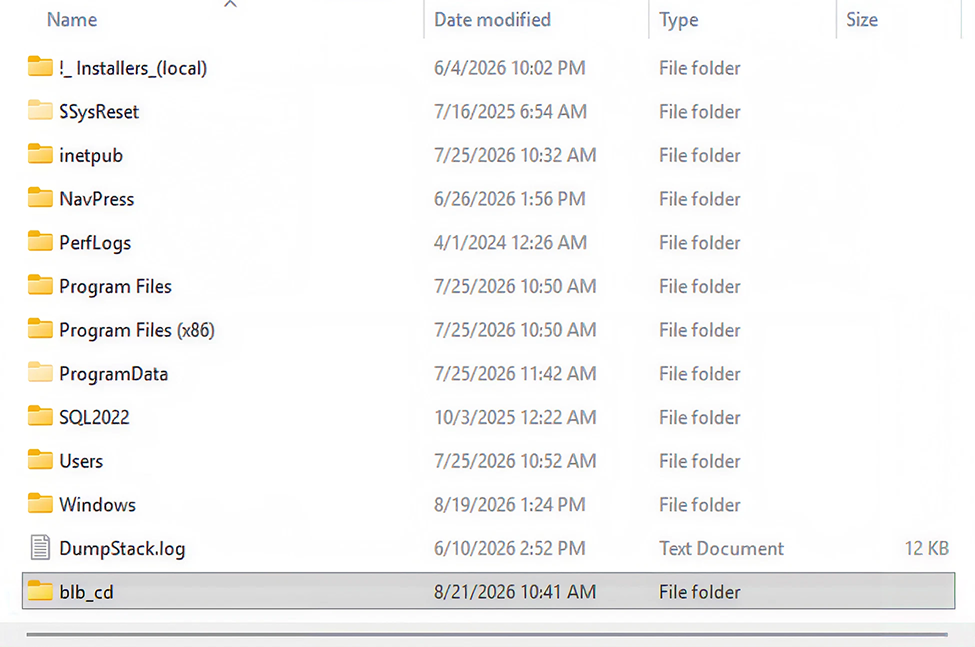
Name this new folder "blb_cd."
-
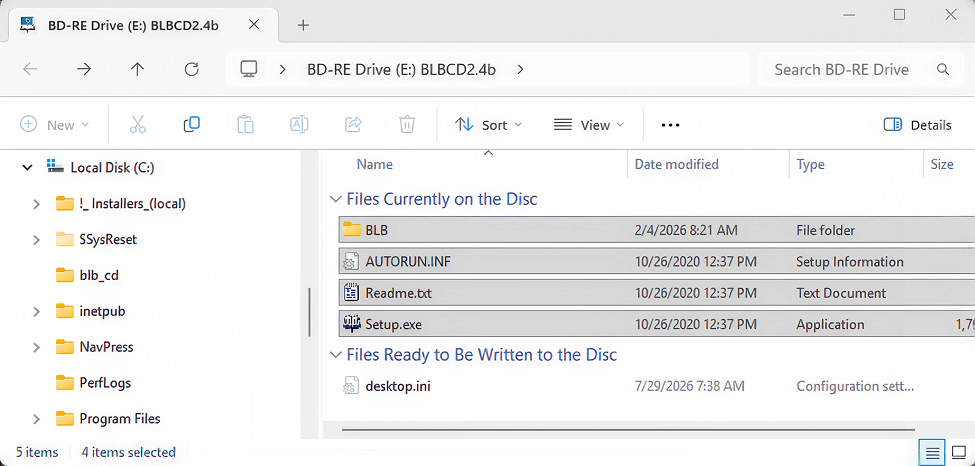
After loading up the BLB CD in your CD-ROM Drive, go to the CD-ROM and select all the files therein by dragging your arrow over the files.
-
Drag all the selected files into the new folder called "blb_cd" that you created on the hard drive. By doing this you are copying the files onto your hard drive.
-
Due to both the size and amount of files on the BLB CD the copying process may take some time.
-
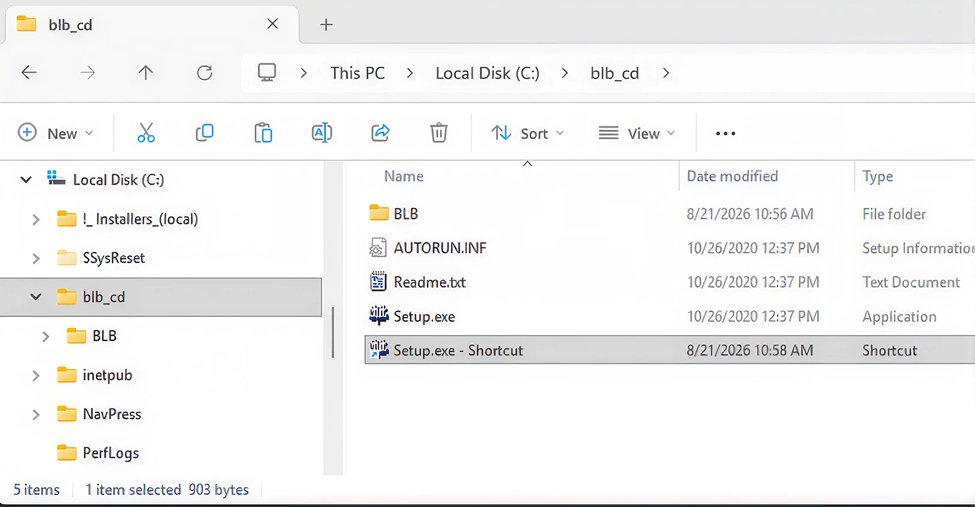
Create a shortcut to the BLB CD by navigating to the Directory on the Hard Drive where you copied it.
Select setup.exe. Right Click. Select Create shortcut from the dropdown menu. Then move the file ‘Setup.exe – Shortcut’ to the desktop.
-
Double-click the shortcut on the desktop to ensure it works. Then rename it.
-
That’s all there is to it.
How to Copy the BLB CD to Your Hard Drive - macOS
This tutorial will guide you step-by-step in the process of how to both display the Blue Letter Bible CD (BLB CD) contents in your browser and be able to copy the BLB CD to your Apple macOS hard drive. There are two main advantages for having the Blue Letter Bible run from your hard drive: (1) It will keep your CD-ROM drive available for other software CD-ROMs or music, (2) the Blue Letter Bible will run quicker from your hard drive than from a CD-ROM drive. The following instructions apply to Mac computers running the macOS operating system.
Before copying the BLB CD onto your Apple Mac hard drive, it is necessary that you have enough space on your hard drive. You need to have about 700 MB of available hard disk space.
To determine how much space you have available on your hard drive follow these steps:
-
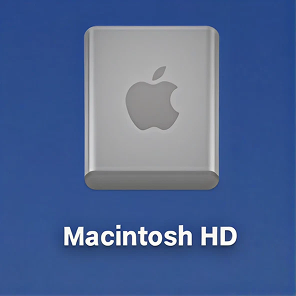
Locate the hard drive icon on your Mac desktop. This drive is usually titled "Macintosh HD." If the shortcut is not on your desktop, locate the hard drive from the Mac's "Finder" window.
-
Right-click on the "Macintosh HD" icon. Select the "Get Info" option from the hard drive's drop-down menu.
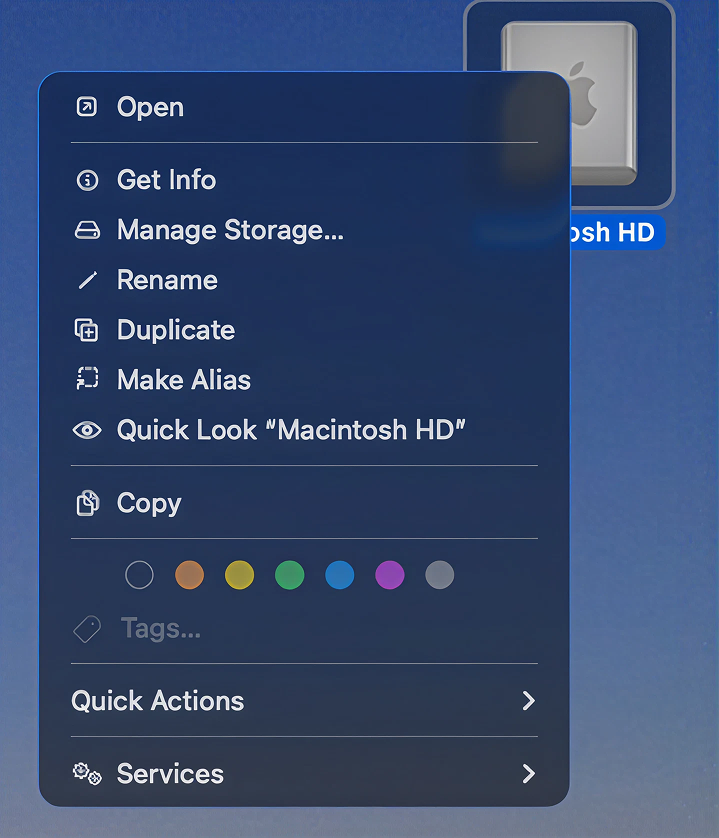
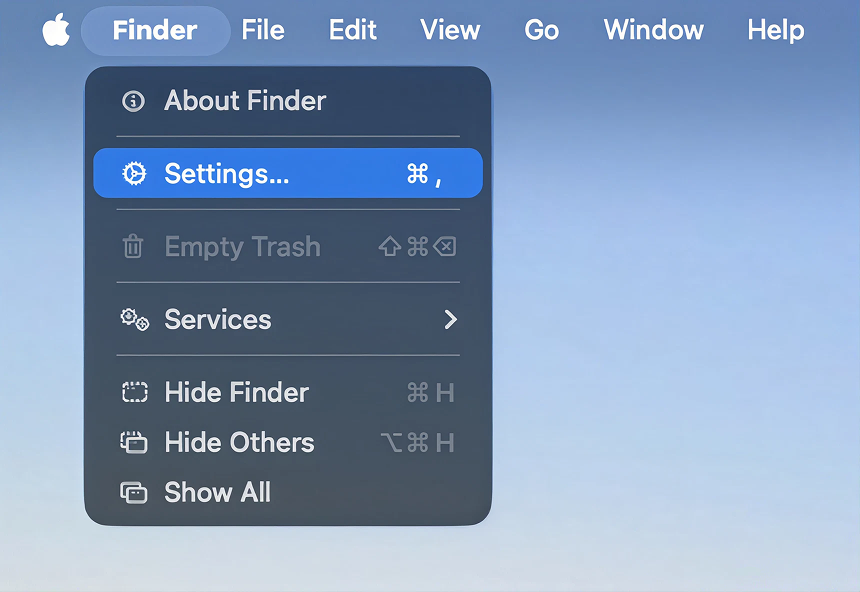
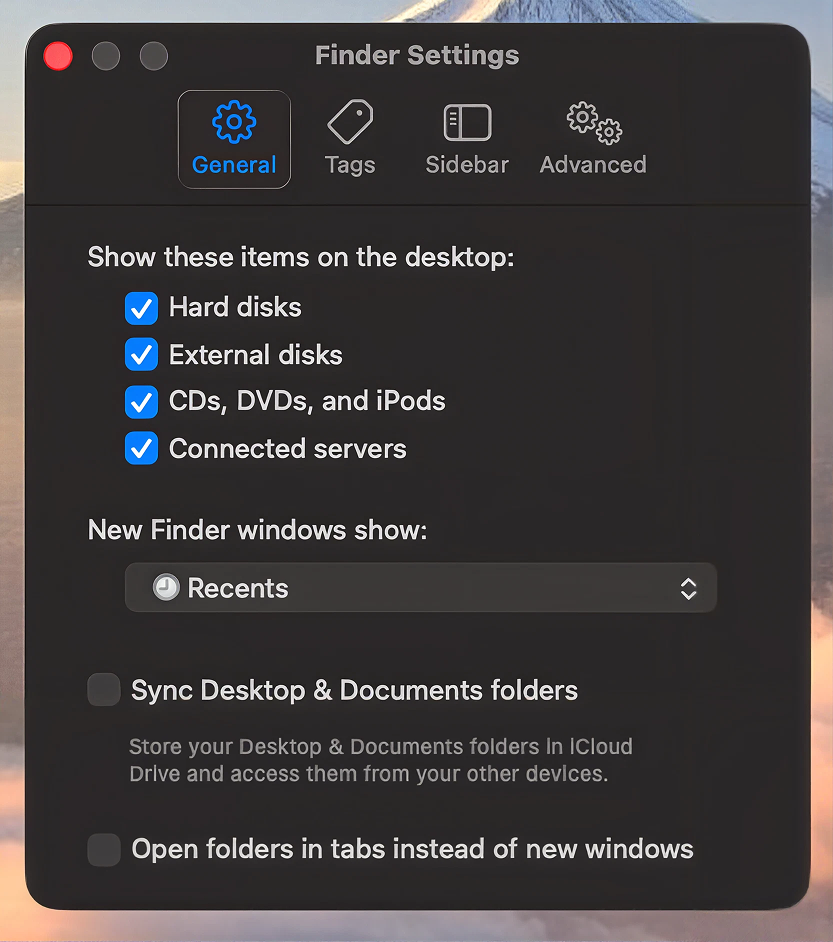
If you don’t see the Macintosh HD icon on your desktop, you can show hard drives on your Desktop by going to Finder > Settings… and selecting Hard Disks under “Show these items on the desktop.” Also select CD, DVDs, and iPods so you can see the CD-ROM drive on your desktop.
-
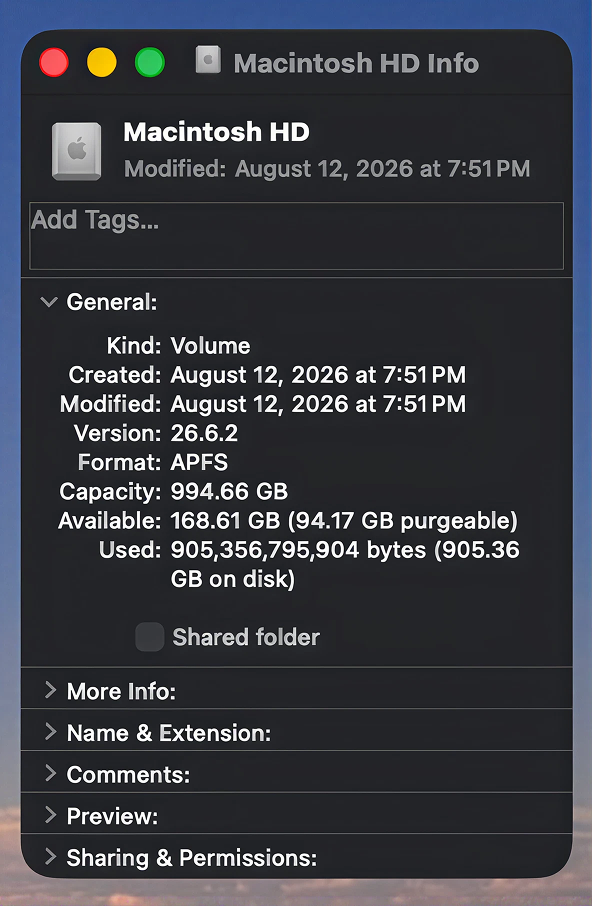
View the computer's hard drive information in the pop-up window. The window will show the drive's total disk space, used space and available space.
-
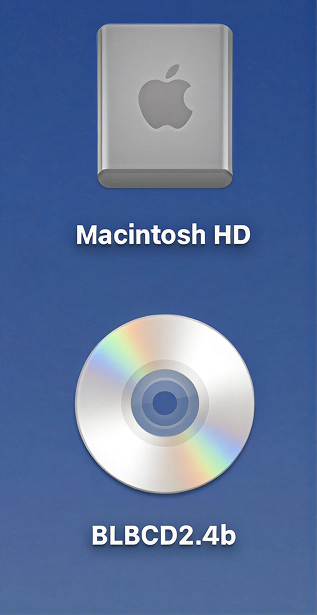
Next insert the BLB CD into your CD-ROM drive. Once the BLB CD is in the system an icon will appear on the desktop.
-
When you double-click on the BLB CD icon on your desktop your Mac Finder window will open showing the CD contents.
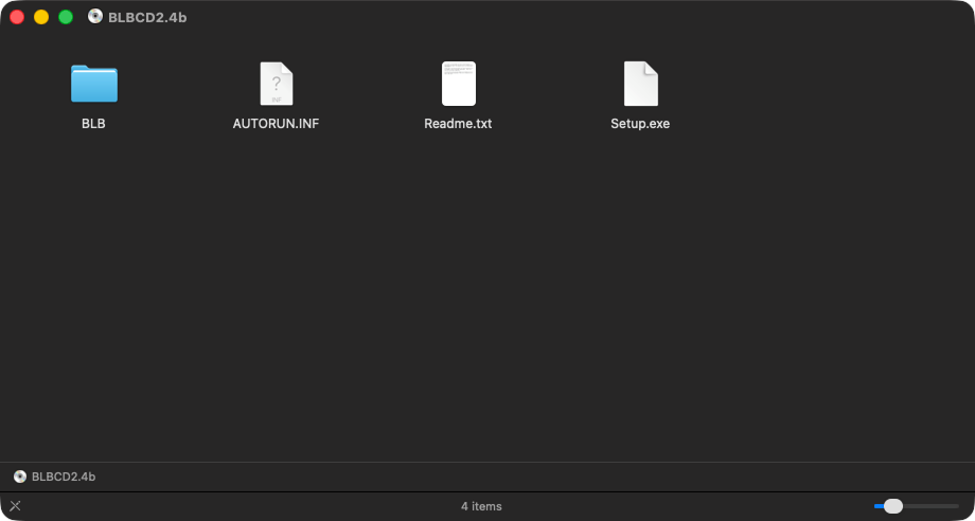
Viewing the BLB CD Contents
At this point you may want to simply view the BLB CD without having to copy the files to your system. There are two ways to do this. You may select the BLB folder on the CD and launch the index.html file. Or you may select the "Mac_Start_here" file in the Finder window (if it exists) and right click with your mouse. You will be presented with a pop-up menu, from here simply select to "Open With" and choose your Safari browser.
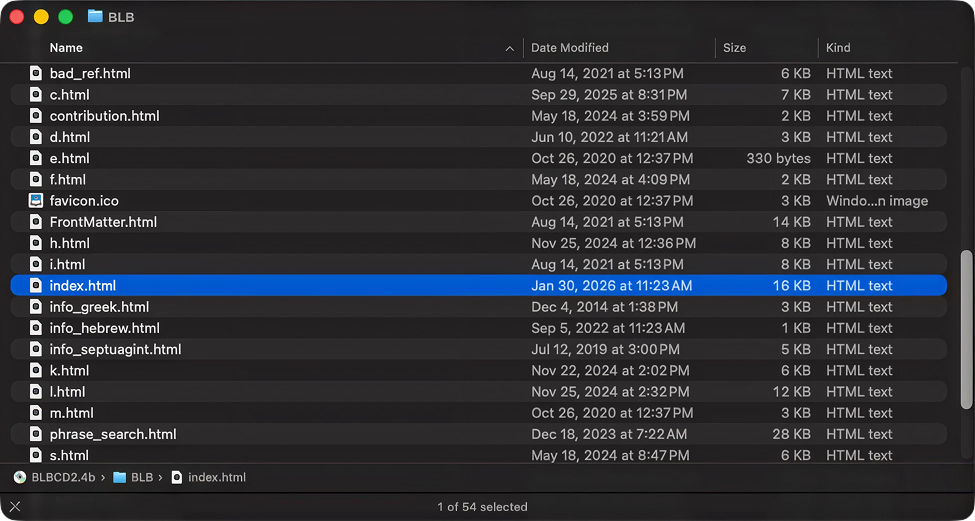
Viewing the BLB CD in the Safari browser. You can stop here - that is if you choose not to copy the CD files on to your computers hard drive otherwise continue to the next step.
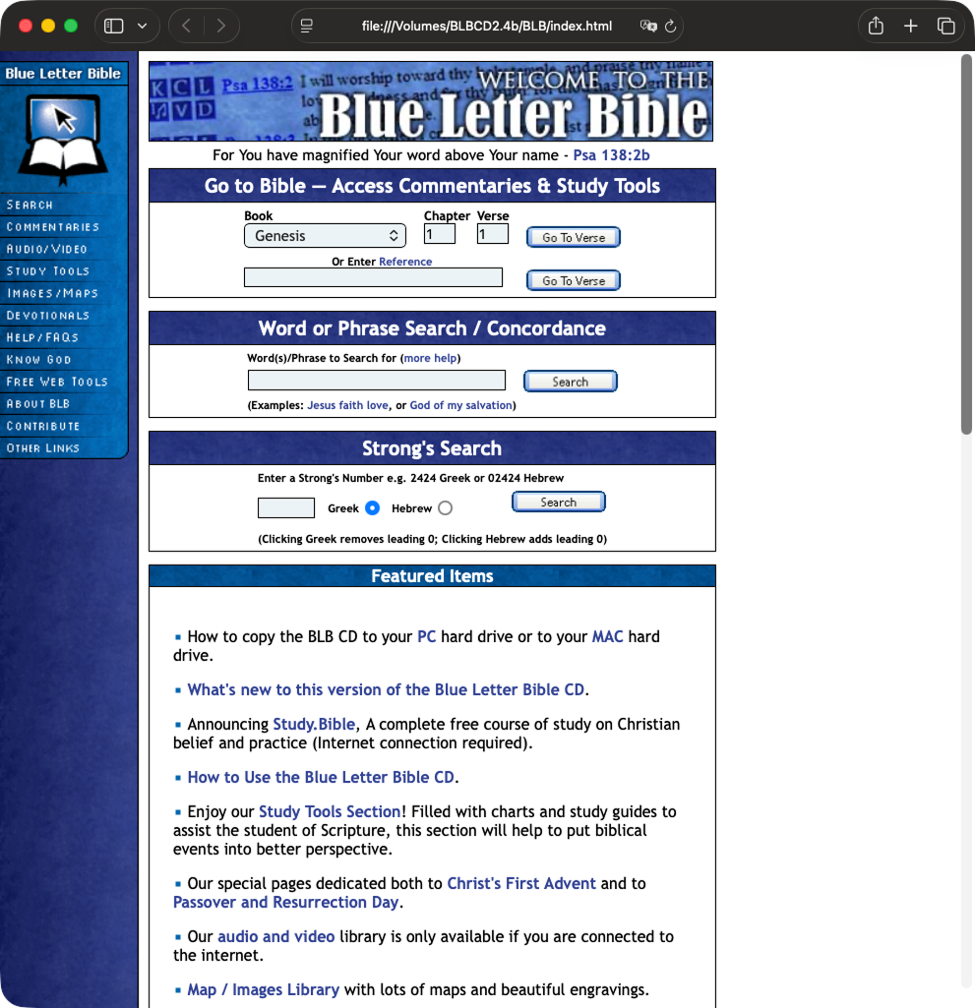
-
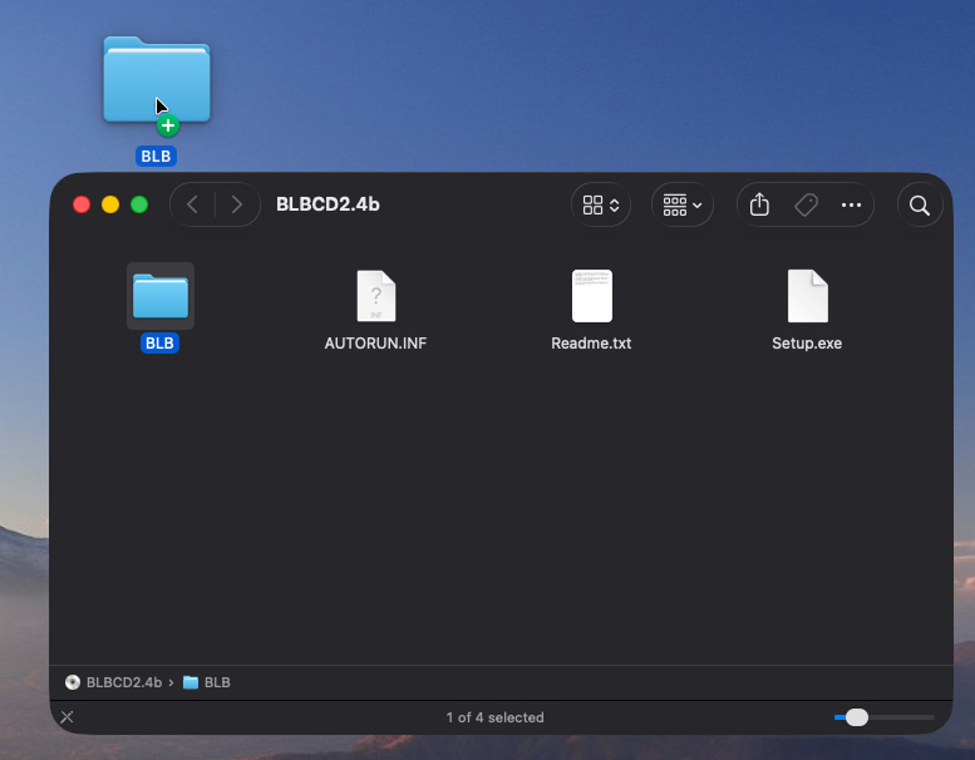
At this point we are now going to copy the BLB CD files to your Mac hard drive. To do so select and hold down the left mouse button on the BLB folder and drag it from the Finder window to your desktop. This action will copy the entire BLB contents to a folder labeled BLB on your desktop.
-
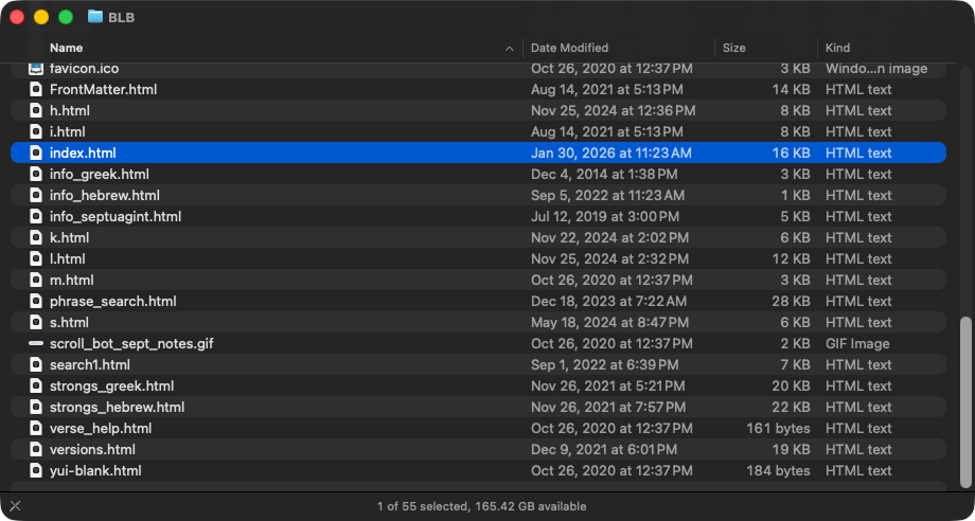
Once the BLB folder has been copied to your desktop you will want to open it. To do so simply double-click on the BLB folder icon on your desktop and it will open in the Finder app.
-
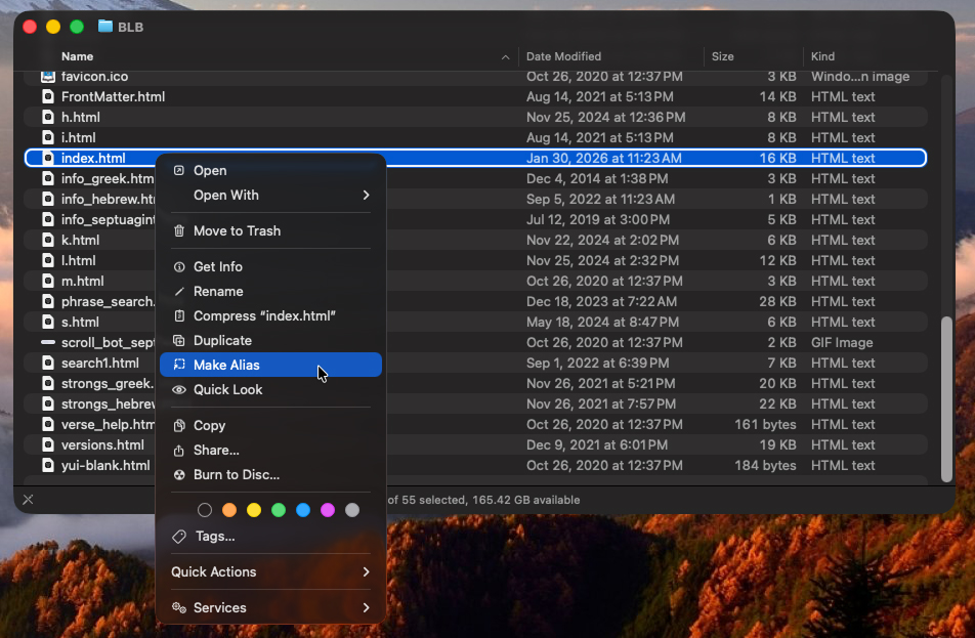
We are now going to create a short-cut or alias to the index.html file that we will then deposit onto the desktop. To do so right-click on the index.html file and select Make Alias from the popup menu option.
-
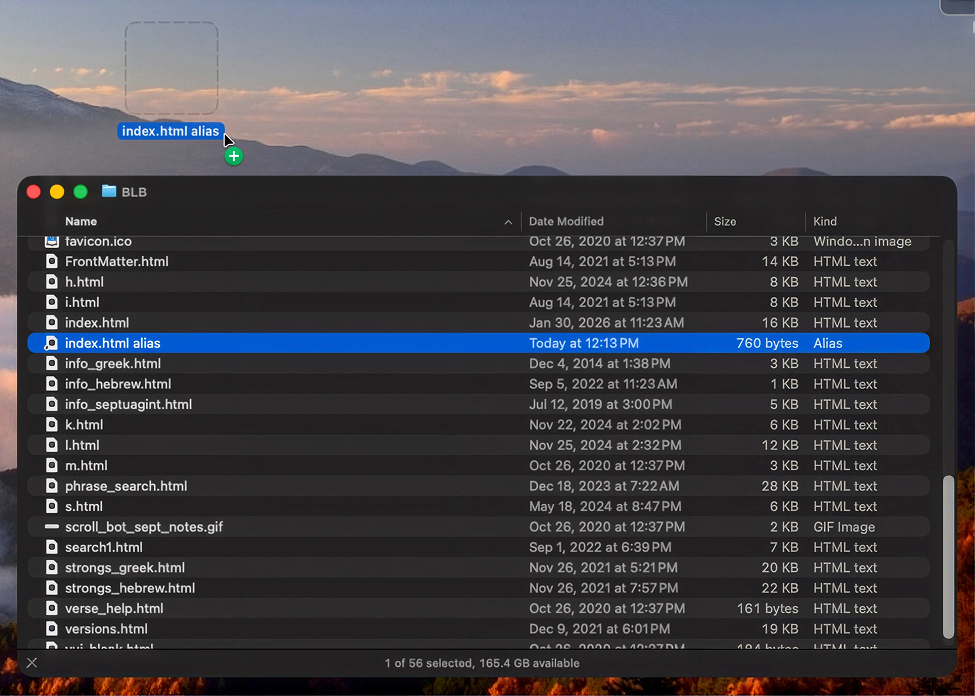
You will now find that an alias or short-cut of the orginal index.html has been created. Select the aliased file with your mouse and drag it to your desktop.
-
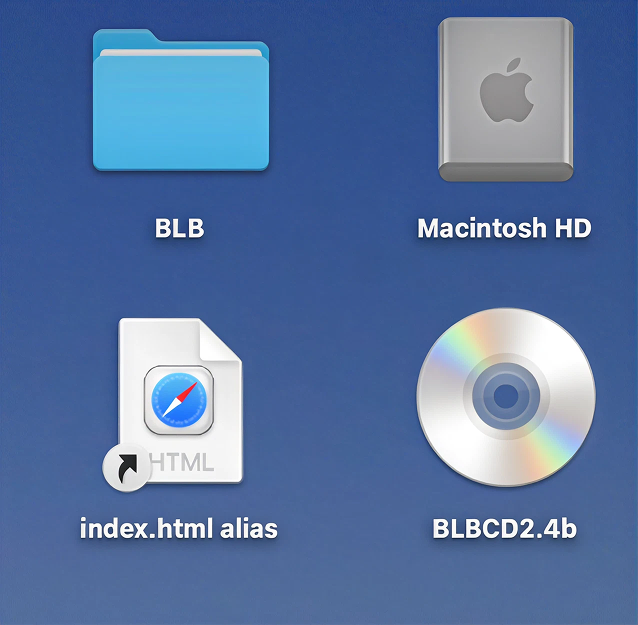
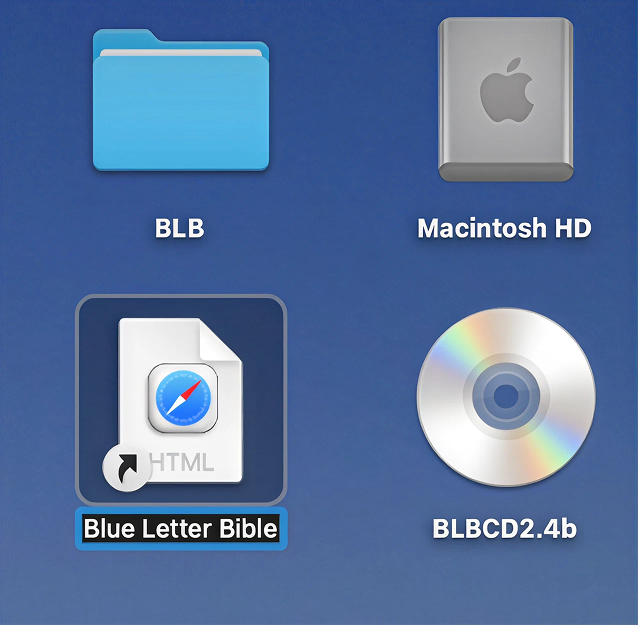
At this point you can choose to rename the alias file to say "Blue Letter Bible" or leave it as it is. To rename the aliased file, simply select the text with your left mouse and hold down the left mouse button until the text background changes to permit you to alter/rename it. Hint: This is Mac's method for renaming files and folders.
-
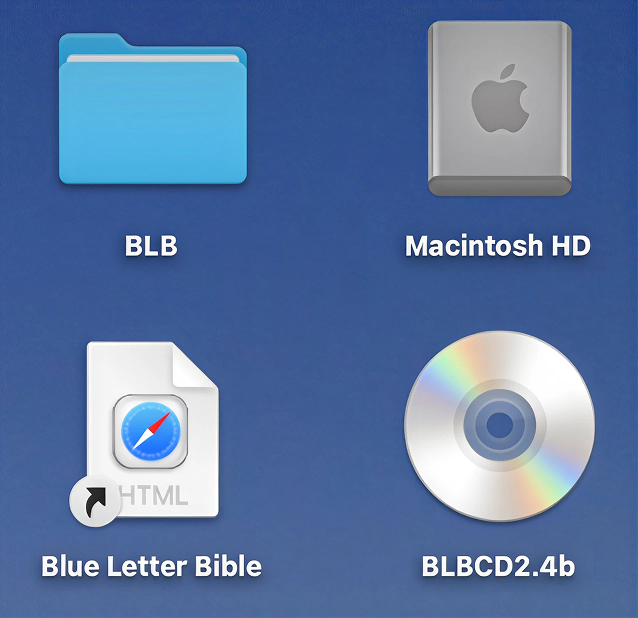
You should now have your BLB icons on your desktop ready to view the "Blue Letter Bible" from the hard drive.
-
Finally to view your "Blue Letter Bible" CD from the hard drive simply click on the new desktop "Blue Letter Bible" short-cut.