
BLB ScriptTagger
A tool that integrates into your website or blog to automatically create a hover display for all Bible references.
What is BLB’s ScriptTagger?
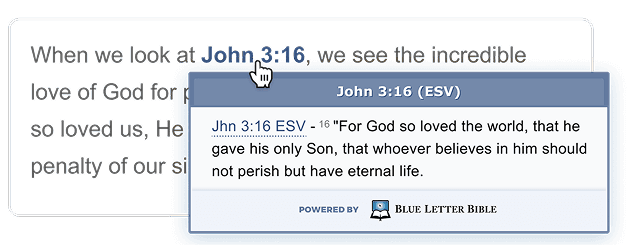
"BLB ScriptTagger" is a free tool that integrates into your website or blog to automatically create a hover display for all Bible references. The hover reveals the verse text and provides a link for further study at the Blue Letter Bible website.
What Does It Do?
The "BLB ScriptTagger" is a free tool that you can integrate into your website or blog to automatically create a hover display for all Bible references on the page. The hover reveals the verse text and provides a link for further study at the Blue Letter Bible website.
Live Demo - Hover a Reference
This script will scan the text of your webpage for verse references such as Romans 1:16-18 or Jhn 3:16.
It will then link them and automatically create and enable the hover. You can set your preferred translation and various other settings. The script will also detect valid translation abbreviations connected with the reference, such as: Zephaniah 3:17 ESV.
Other reference styles that will be caught include Deut 8:2-6, 10, 17-18 and Genesis 1:26-28; 3:15.
General Instructions
Website / Non-Wordpress Blog Installation
Copy the following lines of code into the <head> tag or footer of your webpage. If you use an include or template for your website, insert these lines of code into that template.
Note: The first line (bold portion) is the only required code to copy and paste into your webpage. The remaining lines represent the "additional settings" for BLB ScriptTagger operation.
// Required code<InvalidTag src="https://www.blueletterbible.org/assets/scripts/blbToolTip/BLB_ScriptTagger-min.js" type="text/javascript"></script> // Additional settings<InvalidTag type="text/javascript">BLB.Tagger.Translation = 'NKJV';BLB.Tagger.HyperLinks = 'all'; // 'all', 'none', 'hover'BLB.Tagger.HideTranslationAbbrev = false;BLB.Tagger.TargetNewWindow = true;BLB.Tagger.DarkTheme = false;BLB.Tagger.Style = 'par'; // 'line' or 'par'BLB.Tagger.NoSearchTagNames = ''; // HTML element listBLB.Tagger.NoSearchClassNames = 'noTag doNotTag'; // CSS class list</script>For an explanation of the additional settings that you can define between the second set of <InvalidTag> tags, see the table below:-
What default translation should we display the verses in? BLB translations
What should we do with references that are already links with an <a> tag?
all - Point all linked references to the verse on Blue Letter Bible and create the hover effect.
hover - Leave the reference links alone, but still create the hover effect.
none - Leave the reference links alone altogether.
If a Scripture reference is followed by a translation abbreviation (e.g., John 1:1 ESV), do you want to hide the abbreviation?
Note: BLB ScriptTagger will not automatically show translation abbreviations. This determines whether you want explicitly stated abbreviations hidden.
When a link in the hover is clicked, should it open in a new window?
When this is set to true, this enables a dark theme version of the popup.
Do you want the verses to show up line-by-line, or in paragraphs?
line - Line-by-Line
par - Paragraph
A space or comma delineated list of HTML elements to skip over when searching for scripture references. This applies to your entire HTML document. These elements are already ignored: applet,
hr, head, img, input, meta, script, select, textarea
A space or comma delineated list of CSS classes which designate elements to skip over when searching for scripture references.
Wordpress Instructions
Step by Step: WordPress Plugin Installation
We have created a WordPress plugin for those who have created a website or blog through WordPress.org.
Note: Plugins are only applicable to privately-hosted blogs and web sites using the WordPress.org software. Plugins are not permitted on WordPress.com for various security reasons.
To implement this plugin, you will need to follow just a few, simple steps:
- 1
- 2
Login to manage your WordPress site or blog
- 3
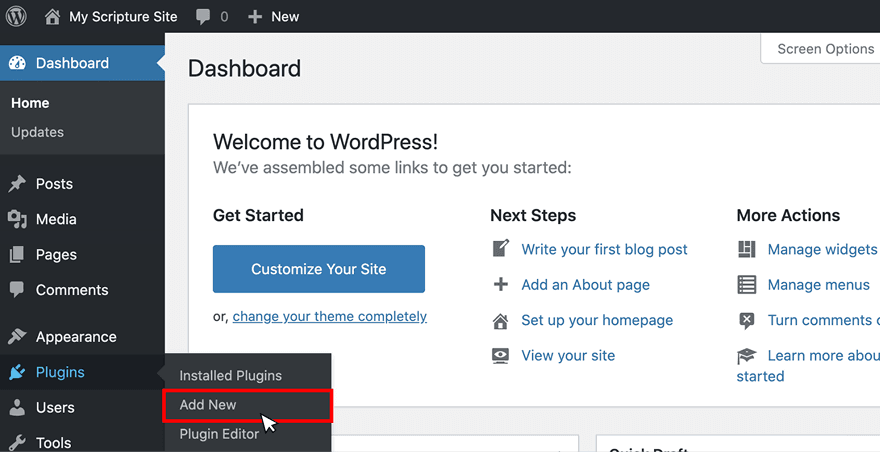
From the Dashboard, navigate to 'Plugins' then select 'Add New'
- 4
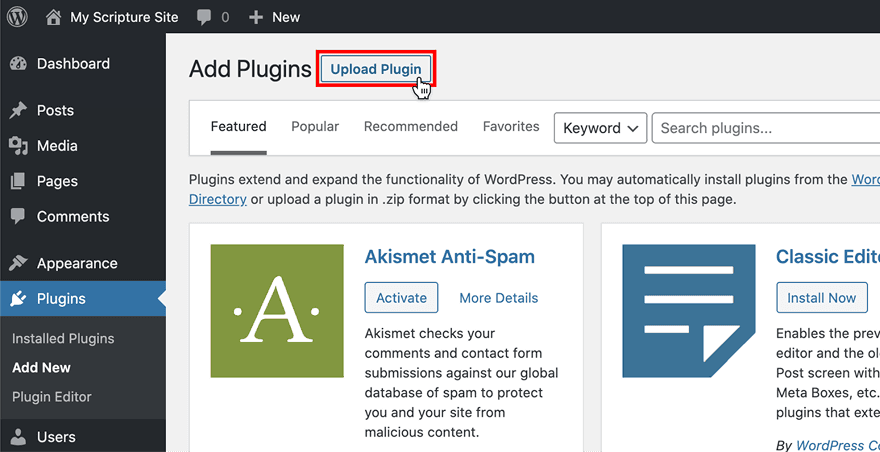
Select 'Upload Plugin' at the top
- 5
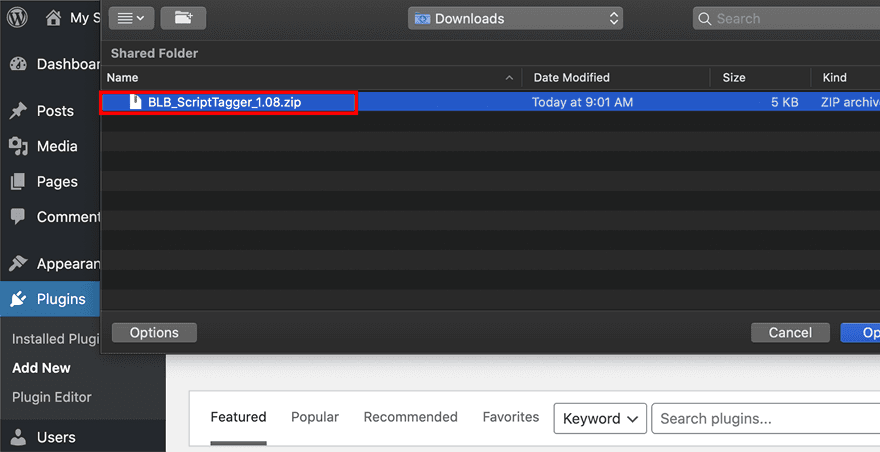
Click 'Choose File'
- 6
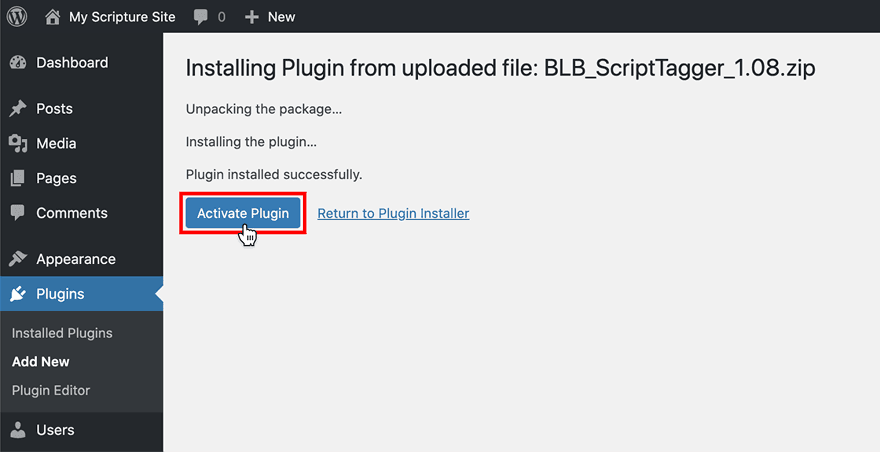
Looking at your list of plugins, find "BLB ScriptTagger" and click "Activate"
- 7
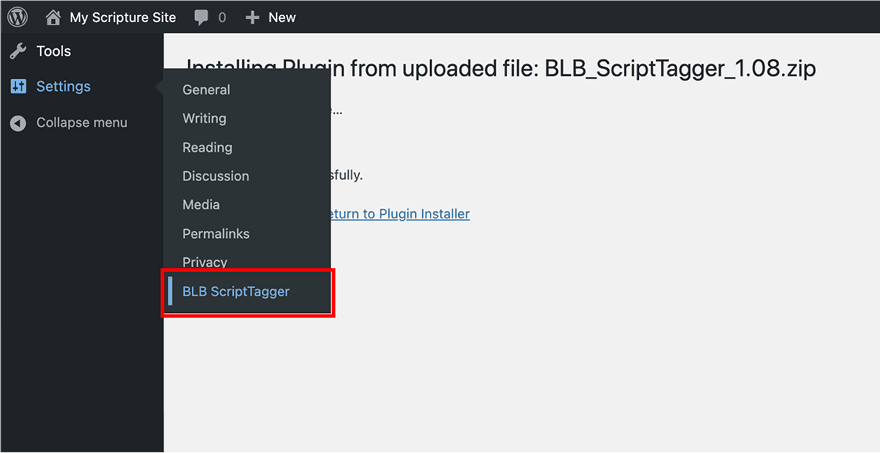
Hover over "Settings" and click "BLB ScriptTagger"
Adjust ScriptTagger Settings
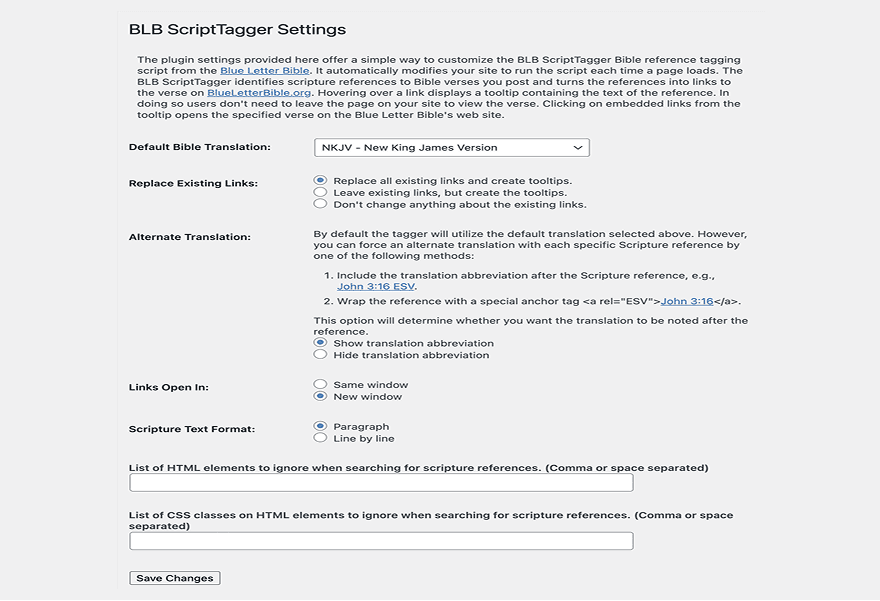
The interactive settings menu allows you to fine-tune how the BLB ScriptTagger identifies, formats, and displays Scripture references across your website.
Use the options below to configure the tool to match your site's style and audience:
Default Bible Translation: Select your preferred primary translation (e.g., NKJV, KJV, ESV) from the dropdown list. This determines which version appears inside the hover tooltip by default.
Replace Existing Links: Decide how the tagger treats existing hyperlinks on your page. You can choose to automatically update all links to point to Blue Letter Bible while enabling the tooltip, keep your original links while adding the hover effect, or ignore existing links entirely.
Alternate Translation:
Show translation abbreviation: Displays the version tag (like "ESV") directly after the reference.
Hide translation abbreviation: Keeps the text cleaner by hiding explicitly stated abbreviations.
Links Open In: Choose whether clicking a link within the tooltip opens the full Blue Letter Bible page in the Same window or launches a New window so users don't lose their place on your site.
Scripture Text Format: Choose between a clean Paragraph layout or a Line by line structure for how the text renders inside the popup.
Exclusion Rules:
List of HTML elements to ignore: Specify any custom HTML tags you want the script to completely bypass.
List of CSS classes to ignore: Input specific class names (e.g., noTag) to prevent the script from tagging text within those specific styled elements.
Note: Once you have adjusted these parameters to your liking, click the Save Changes button at the bottom of the form to update your active plugin configuration.
Additional Notes on Usage & Linking
- 1
Verse references that already have <a> tags or <cite> tags around them and do not contain the full verse reference will not get a hover tooltip. For example, in the following link, the "25" will not have a tooltip:
<a href="./Bible.html">Romans 1:16-18, 25</a>To resolve this issue, either:
Remove the anchor tags:
<a href="./Bible.html">Romans 1:16-18, 25</a>Add Rom 1: in front of the 25
<a href="./Bible.html">Romans 1:16-18</a>, <a href="./Verse.html">Rom 1:25</a>
- 2
The tooltip will only return up to seven (7) verses. If a verse range is longer than seven verses, then a "More »" link will be displayed, linking the reader to the whole chapter on the www.blueletterbible.org. For example, hover over the following reference: Psalm 119 NLT
- 3
To display a verse reference in Spanish, specify RVR60 as the value for BLB.Tagger.Translation. Or, add RVR60 at the end of a verse reference, like this: Mark 10:45 RVR60